

Two ways to connect a prop firm account to Sierra Chart. The simple one takes five minutes and works for any firm that gives you a Rithmic login. The better one uses Rithmic to trade and Sierra’s own Denali feed for data, which is how I run it every session. Apex is the worked example; the steps are the same for Lucid, Bulenox and any other Rithmic firm.
Pick your setup
| A. Rithmic Direct | B. Rithmic to trade, Denali for data | |
|---|---|---|
| What it is | One connection. Rithmic supplies both data and order routing. | Rithmic routes orders; Sierra’s Denali feed supplies market and historical data. |
| Sierra package | 10 or higher | 11 (footprint, TPO and depth history need it; Denali needs an Integrated package) |
| Extra requirement | None | A live account at a futures broker, because CME data agreements on Denali require one. Evaluation accounts do not qualify. |
| Data quality | Fine for candles and a DOM. Historical tick data is limited and reconnects can leave gaps. | Complete historical tick and depth data, stable through news. This is why order flow traders bother. |
| Extra cost | None | Denali exchange fee per month, see step 4 |
| Best for | Getting connected today | Footprint, volume profile, heatmap, anyone backtesting on tick data |
Start with A. Move to B when you find yourself waiting on Rithmic history to load.
What you need
- A Sierra Chart account on Package 10 (setup A) or Package 11 (setup B). Register at Sierra Chart. Prices and what each package includes are in the Sierra Chart guide.
- Your prop firm’s Rithmic credentials. The firm emails these when the account is created. They are not your firm dashboard login.
- R Trader Pro, Rithmic’s own terminal, for the one-time agreements. Download it from Rithmic.
- For setup B only: a live account at a futures broker. Sierra explains why and lists low-minimum options in its CME funded account requirement page. You do not have to trade the broker account. It exists so the exchange agreements can be signed under a live account.
Step 1. Sign in to R Trader Pro once
Rithmic will not route orders until you have accepted its agreements, and Sierra Chart cannot show them to you. Do this in R Trader Pro first.
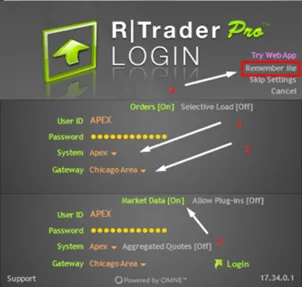
- Open R Trader Pro and enter the username and password from the firm’s email.
- In the System field choose the firm’s own system, for Apex that is Apex. Do not choose Rithmic Paper Trading; that is a different account pool and your login will fail or land in the wrong place.
- Accept the agreements and complete the market data self-certification. Choose Non-Professional unless you trade for a firm or are registered with a regulator.
- Tick Remember me, confirm you can see a live quote, then close R Trader Pro. You will not need it again unless Rithmic pushes new agreements.
Step 2. Setup A: connect Sierra Chart with Rithmic Direct
- In Sierra Chart open File, then Data/Trade Service Settings.
- Set Service to Rithmic Direct.
- Enter the same Rithmic username and password you used in R Trader Pro.
- Set Server to the one named in the firm’s setup email. For evaluations this is normally the firm’s test or paper server; funded accounts move to the live server.
- Click OK, then File, then Connect to Data Feed. The status bar bottom-left should read Connected.
- Open a chart, enter a symbol with its contract month, for example NQZ26, and confirm the DOM shows live bids and offers.

That is a working setup. If you only trade candles and a DOM, stop here.
Step 3. Setup B: trade through Rithmic, get data from Denali
Rithmic’s data feed inside Sierra Chart is the weak link. Historical tick data is partial, and a reconnect during a fast market can leave holes in footprint charts. Denali is Sierra’s own feed with full tick and depth history, and Sierra lets you use it for data while orders still go to your prop firm through Rithmic.
- Connect your live broker account to Sierra Chart once, using that broker’s service in Data/Trade Service Settings. This is what unlocks the CME agreements under a live account. Disconnect when done.
- Activate Denali and sign the exchange agreements, step 4 below.
- Back in Data/Trade Service Settings, set the main Service to Denali Exchange Data Feed.
- In the same window, set the separate Trading service to Rithmic Direct with your prop firm’s credentials and server. Sierra’s Denali documentation shows the exact fields for the current version.
- Connect. Data now comes from Denali, orders go to the firm. Confirm with one micro contract that a fill appears in the Trade Activity Log with the Rithmic account number.
Step 4. Activate Denali
- Log in at sierrachart.com and open Denali Data Feed in the control panel.
- Sign the CME, CBOT, NYMEX and COMEX exchange agreements. Non-Professional again.
- Choose the data option. With market depth if you trade off the DOM or use the market depth heatmap. Without market depth if you only need footprint, volume profile and TPO, which work from trades, not depth.
- Prices as of verification: with depth [$13.5/month], without depth [$6/month]. Sierra shows the live figure on the activation page. First month is a trial at the time of writing; check the page.

When it does not connect
- Login rejected in Sierra but works in R Trader Pro. Wrong server in Data/Trade Service Settings. Match the firm’s email exactly.
- Connected but no quotes. Agreements not accepted. Sign in to R Trader Pro once and accept them.
- Denali shows “not authorised” for CME. The exchange agreements were signed under an evaluation account. They must be signed while a live broker account is connected.
- Footprint studies missing. You are on Package 10. Numbers Bars need Package 11.
- Orders go nowhere in setup B. The trading service is still set to the broker you used to unlock Denali. Switch it back to Rithmic Direct with the prop firm’s credentials.
Apex specifics
Apex issues Rithmic credentials for every evaluation and funded account, so both setups work. The System field in R Trader Pro is Apex. How many accounts you can hold and trade at once is set by Apex and has changed more than once; the current limit is in the Apex 4.0 review 20 accounts. The step-by-step with Apex screenshots is on the Apex connection page.
Use code SPICY at Apex for the best current discount. It works on new accounts and on resets, however many accounts you already hold. Every verified code.
Other Rithmic firms
Lucid Trading issues Rithmic credentials and lists Sierra Chart on its platform page; the System field is Lucid’s own. The Lucid connection guide is next in the queue. For any firm not covered here, the test is the same: if the firm emails you a Rithmic username, these steps apply. If it runs only its own platform, as Topstep does with TopstepX, Sierra Chart cannot connect natively. The full support table is in the Sierra Chart guide.
Related: Sierra Chart for prop firm traders · prop firm calculators · rule change tracker · compare firms · Questions and the free order flow course are in the Futures Orderflow Discord.
SpicyFutures is an independent affiliate site. We earn a commission when you use code SPICY at a partner firm. Sierra Chart has no affiliate programme and pays nothing for this page. The steps are the same on any account. Prices and platform support are set by Sierra Chart, Rithmic and the firms and change without notice. Futures trading involves substantial risk of loss.
